Field notes

HowTo Blog

Articles and updates about DFIRoscope and Windows investigation.

Posts

Windows Audit Policy: Ten Settings to Start With

Use gpedit.msc to prepare useful Windows Security logs, understand policy precedence, and verify ten practical audit settings.

DFIRoscope can work with the evidence Windows records. Before investigating a lab machine, make sure its audit policy produces useful Security events. Enabling auditing today cannot recover yesterday's missing activity.

Local policy and the defaults

gpedit.msc opens the Local Group Policy Editor, an MMC snap-in for configuring this computer's policies. Run it with administrative privileges. It is available on Windows Pro, Enterprise, Education, and Windows Server; Windows Home does not include the editor.

Windows does not start with an empty log, but its default auditing leaves important investigation gaps. Some events are already recorded; coverage depends on Windows version, machine role, and applied policies. Not Configured does not mean nothing is logged. It means this local policy does not explicitly set that option. See Microsoft's audit defaults and recommendations.

Local policy is convenient for a standalone lab. On an Active Directory domain member, administrators also distribute Group Policy Objects (GPOs) centrally. Applicable domain GPOs can override conflicting local settings and reapply them during refresh. Editing gpedit.msc changes the local GPO, not the domain's policy. Microsoft explains policy precedence.

Configure ten audit settings

Open Computer Configuration > Windows Settings > Security Settings > Advanced Audit Policy Configuration > System Audit Policies - Local Group Policy Object. Work through the categories below, open each named setting, select Configure the following audit events, and enable the indicated outcomes.
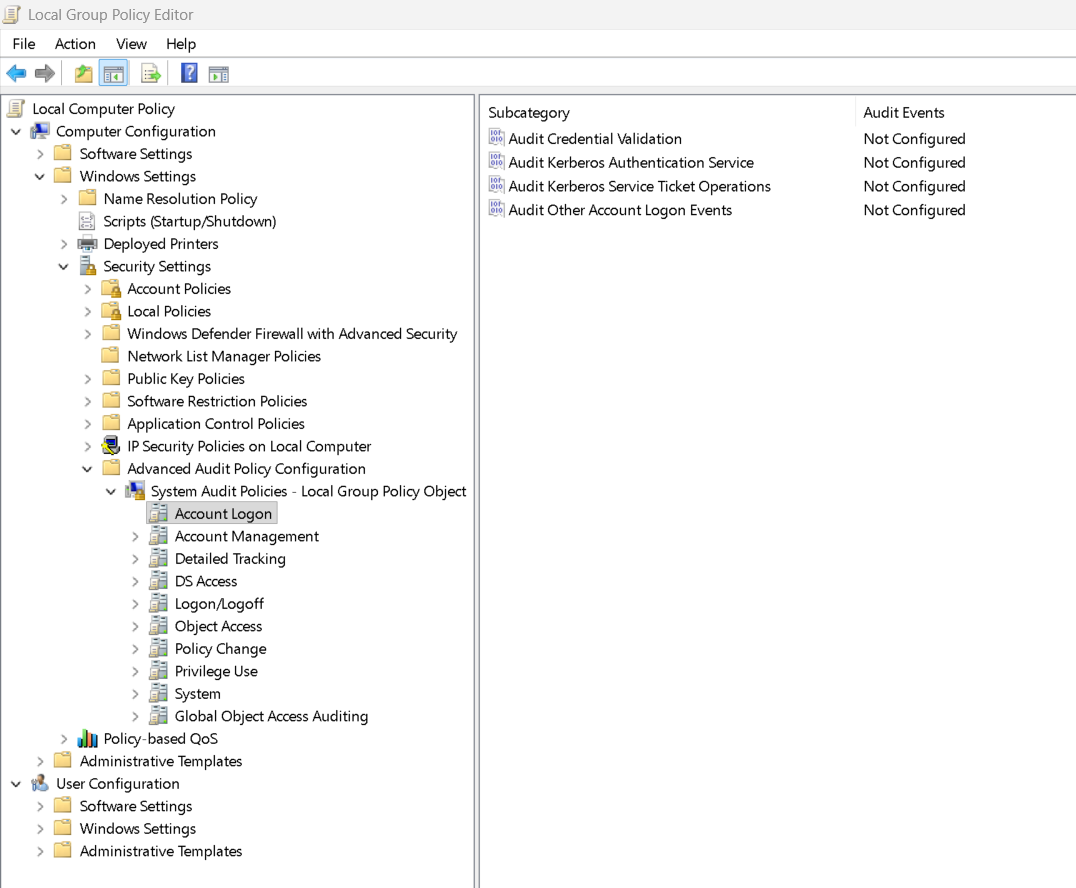
Local Group Policy Editor showing Advanced Audit Policy Configuration, with Account Logon selected and its four subcategories marked Not Configured

The screenshot shows Account Logon. Not Configured describes this local GPO; use the other categories for most settings below.

These ten subcategories are a practical starting selection for a lab workstation or member server, not a complete security baseline:

  1. Logon/Logoff > Audit Logon — Success and Failure. Record successful and failed sign-ins, including network logons. Start with events 4624 and 4625.
  2. Logon/Logoff > Audit Logoff — Success. Record session endings. Event 4634 helps correlate a session with its logon; an abrupt shutdown can leave an incomplete trail.
  3. Logon/Logoff > Audit Special Logon — Success. Event 4672 identifies new sessions assigned sensitive privileges. SYSTEM sessions generate it routinely; it is not an attack verdict.
  4. Account Management > Audit User Account Management — Success and Failure. Track account creation, changes, and password operations. Examples include 4720 and 4724.
  5. Account Management > Audit Security Group Management — Success. Track group changes, especially additions to local Administrators (4732).
  6. Policy Change > Audit Audit Policy Change — Success and Failure. Watch changes to auditing, including 4719. This helps explain a sudden loss of visibility.
  7. System > Audit Security System Extension — Success. Capture service installation (4697) and security-extension activity.
  8. Object Access > Audit Other Object Access Events — Success and Failure. Capture scheduled-task creation and changes, including 4698 and 4702.
  9. Detailed Tracking > Audit Process Creation — Success. Record new processes with event 4688. This records process creation; including command-line arguments requires a separate setting. Process auditing reference.
  10. Account Logon > Audit Credential Validation — Success and Failure. Record NTLM credential-validation attempts, especially 4776, including failures. The authoritative computer records the event: the local computer for local accounts, or a domain controller for domain accounts. This does not cover every authentication protocol. Credential validation reference.

Failure is not meaningful for every subcategory. See Microsoft's advanced audit reference for details. Domain controllers need additional authentication and directory auditing; configuring a member PC does not make it record domain-wide account activity.

Verify the result

Under Security Settings > Local Policies > Security Options, keep Audit: Force audit policy subcategory settings (Windows Vista or later) to override audit policy category settings enabled. Use advanced subcategories consistently rather than mixing them with the older Local Policies > Audit Policy settings. Override-setting reference.

Check the effective configuration from an elevated terminal:

auditpol /get /category:*

Generate a benign lab event, such as signing in with a test account, then check Event Viewer > Windows Logs > Security for a new 4624.
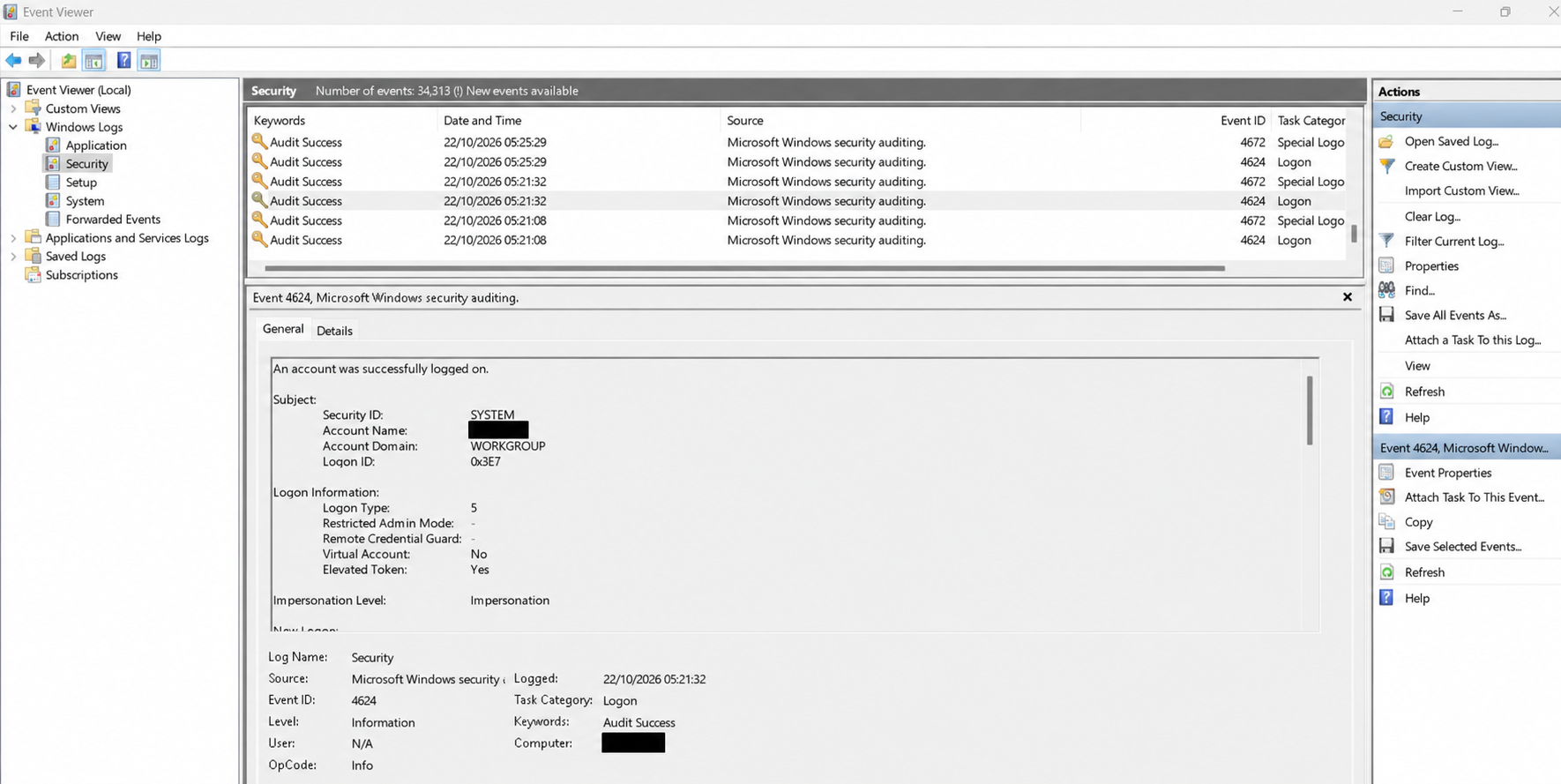
Event Viewer showing the Windows Security log and event 4624, with the machine account and computer name redacted

Event 4624 in the Security log. This example shows a SYSTEM service logon (type 5), rather than an interactive sign-in. The hostname is redacted in both fields.

View the redacted Event Viewer screenshot at full size.

Size the Security log and review retention settings to avoid overwriting useful events too quickly. Avoid enabling everything: broad auditing creates noise, and file/registry auditing also needs matching auditing entries (SACLs).

Command-line capture, PowerShell logging, and authentication versus authorization will be covered in follow-up articles.

A Quick Virtual Lab for Testing DFIRoscope

Choose a hypervisor, prepare a Windows evaluation VM, and avoid the common traps before testing DFIRoscope.

The best place to test new cybersecurity software is a lab. You can experiment, compare results, and start again without turning your everyday workstation into the experiment. For getting familiar with DFIRoscope, a virtual machine is a practical starting point.

Hyper-V, VirtualBox, VMware Workstation Pro, and cloud VMs are all options. My favorite is VMware Workstation Pro. In my experience, its snapshots, cloning, and flexible networking make it particularly convenient for lab work. It has been free for personal, educational, and commercial use since 11 November 2024. Download it through Broadcom's official download instructions. You will need a free Broadcom account; completing the account profile and compliance information can be part of the download process.

For the guest operating system, Windows Server 2025 Evaluation is a useful option. Microsoft provides a 180-day evaluation, available from the Microsoft Evaluation Center. Activate it over the internet within the first ten days to avoid automatic shutdowns. If you need longer, check whether your installed evaluation supports an extension and make sure your use complies with Microsoft's evaluation licensing terms. Do not assume unlimited renewals.

During installation, choose Desktop Experience. This gives you the Windows graphical desktop. An edition listed without those words installs Server Core, and switching later requires a clean installation. Microsoft explains the installation options here.

Once Windows is installed, update the guest, host, and hypervisor, then take a clean baseline snapshot. Install DFIRoscope and use disposable copies of your test data. Keep results you want to retain outside the VM before reverting it. Snapshots make experiments repeatable, but they are not backups.

Pay attention to networking and host integration. Bridged networking places the guest on your physical network. NAT usually makes initial downloads easier, but it does not create an isolated malware environment. Shared folders, clipboard sharing, and connected USB devices also create paths between the guest and your everyday system. Enable only what you need. With cloud VMs, also watch running costs and publicly exposed management ports.

This quick lab is for software evaluation and trusted test data. It is not prepared for running live malware. A VM escape exploits a virtualization vulnerability to break out of the guest and execute code on the host. This is a real risk: Broadcom has documented vulnerabilities exploited in the wild that allowed guest-to-host code execution. Security advisory.

AI-assisted research can uncover previously unknown software vulnerabilities, adding urgency to patching, but it does not establish how likely a particular VM escape is. Treat virtualization as a useful boundary, never guaranteed containment. Research example.

Run a local LLM with DFIRoscope using LM Studio

Set up a tool-capable model in LM Studio and connect it to DFIRoscope on the same computer.

LM Studio provides a straightforward way to run a language model on your own computer and make it available to DFIRoscope. Ollama is another option, but this walkthrough uses LM Studio's desktop interface. You will download and test a model, start LM Studio's local API server, then add it as a DFIRoscope AI provider.

The AI provider controls described below are available in DFIRoscope Live 0.4.0.

Download and test a model

  1. Install LM Studio and open its Discover tab.
  2. Search for a model with tool-use support. Choose a download size that suits your available memory. The screenshots below use RedSage Qwen3 8B DPO as an example; you can use a different tool-capable model.
  3. Load the downloaded model in Chat or Developer. Ask it a simple question in Chat to confirm that it responds. A successful chat test does not, by itself, prove that the model handles tool calls reliably.

For DFIRoscope's investigative tools, prefer a model that LM Studio marks as supporting native tool use. Smaller models can produce malformed tool calls or less reliable analysis, so test the model with your own workload.

LM Studio showing a loaded RedSage Qwen3 8B DPO model marked as trained for tool use

View the tool-use screenshot at full size.

Start the local API server

In LM Studio's Developer tab, start the server and make sure the model is loaded. On the same computer, its default OpenAI-compatible base URL is http://localhost:1234/v1. Leave the server running while you use DFIRoscope.

Connect DFIRoscope

With an investigation open, go to Explorer > AI providers. Add a provider of type OpenAI compatible, set its Endpoint to http://localhost:1234/v1, and save it. Then edit that provider, select Load / Refresh models, choose the model you loaded in LM Studio, and save again. Use Test connection to check the setup. A local LM Studio server on the same computer does not need an API key in the default configuration.

The localhost address works only when LM Studio and DFIRoscope run on the same computer. If you use a server on another machine, its address and network security settings will be different.

Choose memory and context settings

A GPU can make local inference much faster, but a model does not have to fit entirely in GPU memory to run. LM Studio can use system RAM or partial GPU offload, often at a speed cost. The model's parameter count alone does not determine whether it fits: quantization, context length, the key-value cache, and other memory overhead also matter. For example, a quantized 8B model may work on an 8 GB GPU with suitable settings, but that is not guaranteed.

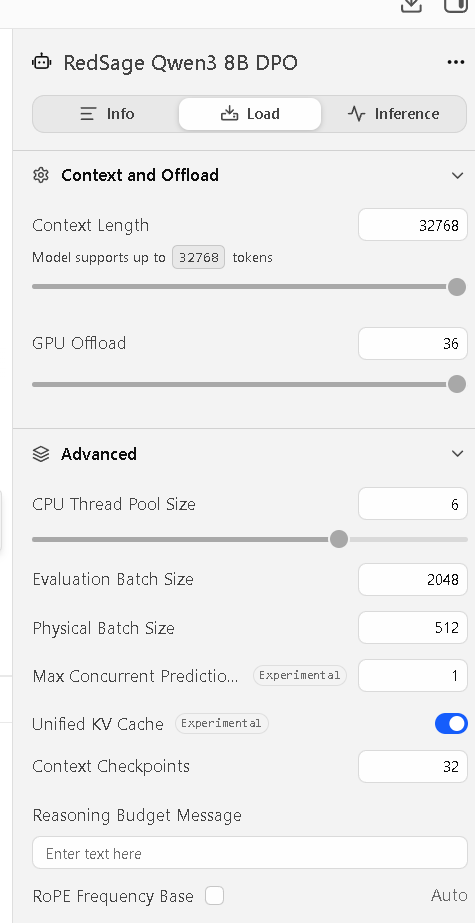
In LM Studio's model loader, choose a Context Length that your hardware can handle. Set DFIRoscope's Context tokens to no more than the context length used when loading the model. Longer context can require substantially more memory. If you use DFIRoscope alone, setting Max Concurrent Predictions to 1 is a simple starting point; increase it only if you need simultaneous requests and have enough resources.

LM Studio model load settings showing context length, GPU offload, and one concurrent prediction

View the model settings screenshot at full size.

If the connection works but the assistant struggles with investigations, try a model with stronger tool-use support or reduce the task's scope. Always check the assistant's conclusions against the underlying evidence.

For more detail, see LM Studio's guides to running a local server and tool use.

First steps with DFIRoscope Live

Open the Viewer, add a local Agent, prepare Windows telemetry, and refresh recorded evidence.

This guide covers the portable Windows version of DFIRoscope Live. You will start the Viewer, connect a local Agent, check the event sources you want to capture, and load the recorded data into the Viewer. The screenshots show the controls available in the current 0.4.0 release.

Start the Viewer

  1. Download a Windows x64 package from the Downloads page and extract the ZIP file. Choose the self-contained package if you do not have the required .NET Desktop Runtime; the framework-dependent package needs the runtime listed on that page.
  2. Open the extracted Viewer folder and run DFIRoscope.Live.exe.

The public executable is unsigned, so Windows may show a Microsoft Defender SmartScreen warning. Check that you downloaded it from the linked GitHub release and compare its SHA-256 hash with the release manifest before deciding whether to run it. A warning alone does not establish that a file is safe or unsafe. See Microsoft's explanation of SmartScreen reputation.

Add a local Agent

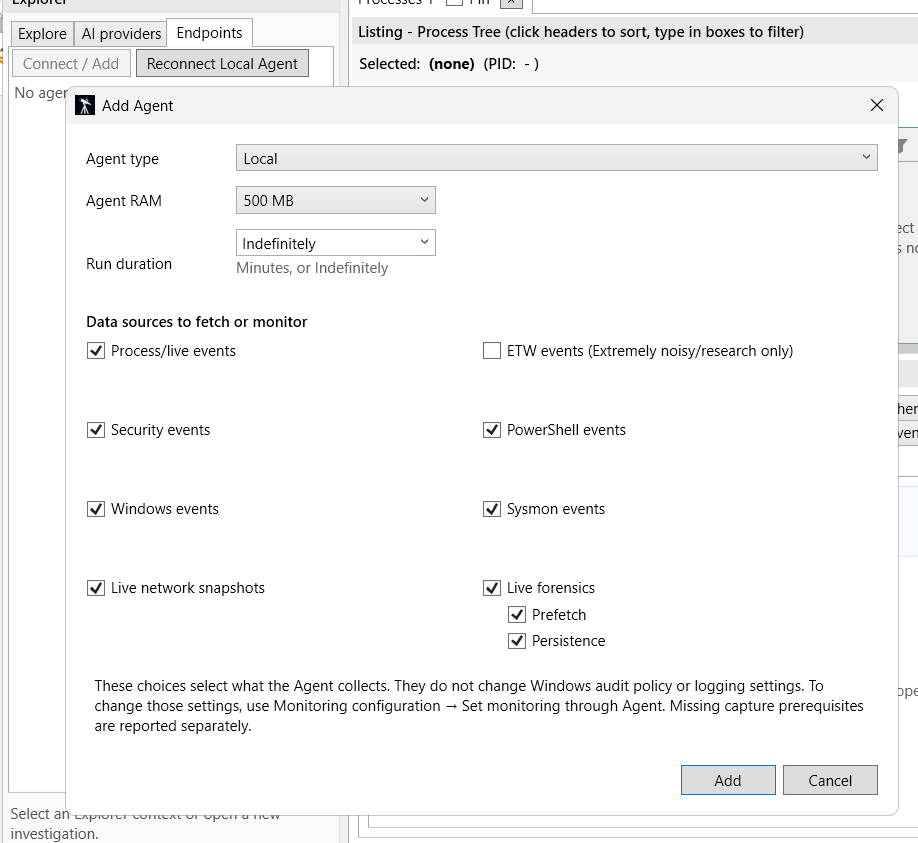
The Viewer is the interface you use to investigate evidence. The Agent collects data from the computer. In the Viewer, open Explorer > Endpoints, choose Connect / Add, and select the Local Agent type. Pick the sources you want to collect, then choose Add. The local Agent setup starts the Agent when none is present.

Add Agent dialog showing the Local type, memory limit, run duration, and capture sources

The source checkboxes control what the Agent tries to collect. They do not enable Windows auditing or install Sysmon. If you select a source without its prerequisite logging, the Agent cannot collect the events you expect. Start with the sources relevant to your investigation; ETW events are marked in the interface as extremely noisy and intended for research.

Prepare Windows monitoring

DFIRoscope follows a bring-your-own-telemetry approach: useful event investigations depend on the logging configured on the computer. Check your Windows audit policy and PowerShell logging, and configure Sysmon if you want its events. Sysmon is an optional built-in feature on supported Windows 11 systems, but it is disabled by default and still needs to be enabled and configured. Other systems may use the separate Sysinternals version. Microsoft explains the options in its Sysmon setup guide.

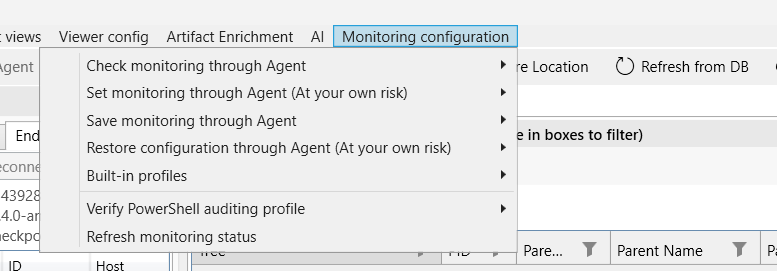
In DFIRoscope, use Monitoring configuration > Check monitoring through Agent to review the current settings. Set monitoring through Agent (At your own risk) and the built-in profiles can help you prepare a test machine, but they change system monitoring settings. Review the proposed changes and your organisation's logging policy before applying them, especially on a production computer. Avoid enabling every event source indiscriminately: high-volume telemetry can consume substantial disk space and make investigations harder to manage.

Monitoring configuration menu with commands to check and set monitoring through the Agent

Refresh the evidence in the Viewer

The Agent records captured data in its capture database. The Viewer displays a snapshot of recorded evidence; it is not a live process monitor. After the Agent has collected data, select Refresh from DB to load the latest records into the Viewer. Refreshing displays recorded evidence; it does not start capture.

Refresh from DB button in the DFIRoscope Viewer toolbar

If no rows appear, confirm that the Agent is running, the intended capture is active, the relevant Windows logs are producing events, and the Viewer's filters and Explorer scope are not hiding results. The current release also has a known refresh issue: if Refresh from DB stops working, terminate both the Viewer and Agent processes, then restart the Viewer. Report persistent problems to app@dfiroscope.com.